Turn a Sketch to HTML & CSS with AI Free: Prompts & Guide
1. From Napkin to Screen: The New Workflow
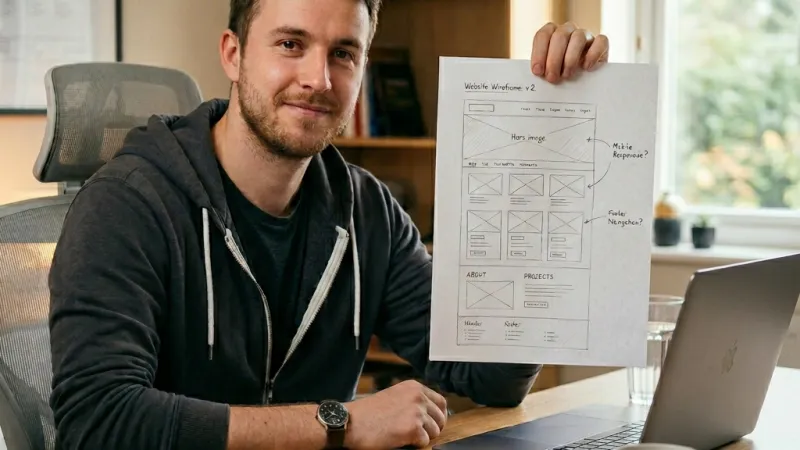
We've all been there. You're grabbing an iced coffee in Brooklyn, a million-dollar website idea hits you, and you quickly sketch it out on a napkin.
The nightmare starts when you get home. Firing up your code editor to type out endless, empty div tags is a massive mood killer.
Today, we're skipping the boring stuff entirely.
Why hand-coding from scratch is officially old school
A few years ago, turning a wireframe into a web page meant spending hours fighting with margins just to center a single button.
Now, Artificial Intelligence does the heavy lifting for you. You literally hand it a photo of your doodle, and it spits out the whole structure.
You upgrade from being the bricklayer to the architect.
What AI nails (and fails) in your doodles
Let's be real, AI isn't a mind reader. But it's insanely good at spotting familiar web patterns.
- What it absolutely crushes: Navigation bars, product cards, contact forms, and massive call-to-action buttons.
- What makes it hallucinate: Crazy overlapping shadows, complex custom illustrations, or weirdly drawn custom icons.
Prepping your sketch for a flawless scan
If you upload a blurry, badly lit photo taken in a basement, you're getting trash code back.
Do this before uploading your image:
- Make sure the lighting is solid if you're taking a picture of physical paper.
- Use a thick, dark Sharpie for the main layout borders.
- If you're using Figma, export a clean, high-res screenshot (PNG or JPG).
2. Top Free AI Tools (and their hidden limits)
Nobody wants to drop $20 a month just to see if this tech actually works.
Here are the best free tools you can use right now, plus the fine print nobody else mentions.
| AI Tool | What the Free Tier Gives You | The Hidden Catch |
|---|---|---|
| Claude 3.5 Sonnet | The absolute best frontend code right now. Uses "Artifacts" to render the web page live on your screen. | Strict message limits. If you mess up your prompts too many times, you're locked out until tomorrow. |
| ChatGPT (GPT-4o) | Incredible image scanning. Great at understanding context and holding your hand if you're a total beginner. | Sometimes spits out outdated code. Tends to default to ugly, basic CSS unless you specifically demand a modern look. |
| v0 by Vercel | Built from the ground up for UI design. Give it a visual prompt, get sleek React and Tailwind code. | You run on monthly free "credits." Build a massive, multi-page site, and you'll hit a paywall fast. |
| tldraw (MakeReal) | A crazy interactive whiteboard. Draw some rough boxes, hit a button, and it turns into a working webpage. | Meant for rapid, messy prototyping. The final code isn't clean enough to push to a live server. |
Claude 3.5 Sonnet: The current king of frontend
If you only have time to test one tool, pick this. Its ability to read an image and spit out pristine HTML and CSS is unmatched right now.
Plus, the built-in live preview saves you the hassle of constantly copying and pasting into your local code editor.
ChatGPT (Free vs Plus): When to use it for scanning
The free tier with the 4o model lets you upload photos now. It's a lifesaver for breaking down the overall layout of your sketch.
Use it when you're stuck on the logic. Try asking: "Look at this layout, how would you structure the semantic HTML for this header?"
v0 by Vercel: Real-time UI generation
This tool is pure fire if you love Tailwind CSS and React.
Drop your screenshot in, and it generates modular, gorgeous UI components faster than you can pour a cup of coffee.
MakeReal by tldraw: Draw with your mouse, get code
This is the fun one. Go to the site, scribble a terrible-looking website mockup with your mouse, and the AI makes it real.
It's the ultimate hack for showing a quick concept to a freelance client before you actually open Photoshop or Figma.
3. Step-by-Step: Turning your design into a working site
Let's get practical. Follow these exact steps so you nail it on the first try and don't waste hours arguing with a chatbot.
Step 1: Upload with perfect framing and contrast
Crop that image tightly. Cut out your desk, your hand, and your browser tabs.
The less visual "noise" the AI has to process, the cleaner your code will be.
Pro Trick: Don't upload an entire landing page at once. If your sketch is super long, slice it up (Header, Body, Footer) and ask the AI to code it section by section. It fails way less often!
Step 2: The context prompt (the step everyone skips)
Don't just upload the photo and type "build this." Give it hardcore technical context instantly.
Tell it exactly what tech stack you want. Vanilla HTML? Tailwind? Bootstrap? Be relentlessly specific.
Step 3: Tweak styles, colors, and fonts
If your wireframe is black and white, the AI is going to guess the colors (and usually guess poorly).
Add this to your first message: "Use a dark navy background (#000080), crisp white text, and the Inter font from Google Fonts."
Step 4: Preview and fix in your browser
Copy the output, paste it into a blank text file, save it as "index.html", and double-click to open it in Chrome.
It's probably going to look a bit weird. Do not fix it by hand. Go back to the AI and say: "That hero image is way too massive, scale it down to 50%."
4. Ready-to-Copy Prompt Templates
Here's my personal stash of prompts. Copy, paste, and tweak them for your own projects.
Master prompt for modern Landing Pages
Act as a Senior Frontend Developer. Review the attached image and convert it into clean, semantic HTML5 and Tailwind CSS. I want the design to be highly modern, sleek, and fully responsive. Use a single-column layout for mobile devices that breaks into a grid layout on larger screens. Do not give me any explanations, just output the complete, ready-to-run code.Component prompt (Pricing tables, Navbars)
Analyze this cropped image containing a [pricing table / navigation bar]. Write the HTML and CSS (using Flexbox) needed to replicate this layout exactly. Ensure that the primary buttons have a smooth hover transition effect when the user interacts with them.The rescue prompt for responsive (Mobile) disasters
The code you just gave me looks incredible on desktop, but it completely breaks on a mobile screen. Rewrite the CSS using a strict 'Mobile-First' approach. Start with the base styles for small screens and only use Media Queries to adjust the layout for screens 768px and wider.5. Common AI coding mistakes (and how to dodge them)
It's not totally flawless yet. If you blindly trust the bot, you'll end up with a messy, unmaintainable codebase.
The hell of made-up or messy CSS classes
Sometimes the AI gets a little too creative and writes twenty different CSS classes to do the exact same thing.
Keep an eye out. If you see classes like .box-1, .box-2 with identical styling, tell the AI to "refactor and clean up all redundant CSS."
Watch Out: Never blindly copy-paste AI code for a real client's website without checking it. AI frequently ignores accessibility tags (ARIA) and basic SEO structure. Always double-check your H1 tags, image alt text, and link structures.
When the AI completely forgets mobile phones exist
This happens all the time. You feed it a wide, desktop-style sketch, and it gives you a site that forces mobile users to pinch and zoom.
Force its hand by typing the word "Responsive" in capital letters in your very first prompt.
A quick trick to clean up "junk" code before going live
Right before you call the project done, open a brand-new, fresh chat in ChatGPT or Claude.
Paste your final code in and say: "Act as a strict code auditor. Review this HTML/CSS, delete any unused lines, optimize it for fast loading, and add brief comments."
Wrapping it up...
Using AI doesn't make you a lazy programmer or a fake designer. It makes you dangerously fast.
Being able to turn a crazy idea scrawled in a notebook into a clickable, working website in 5 minutes is an absolute game-changer. Stop overthinking it, try the free tools listed above, and start breaking things. It's the only way to learn.